
WordPress Security in Good Hands
This handbook guides you through WordPress security by covering its foundations, current threats, practical hardening techniques, and real-world examples. The goal is to give you the essential knowledge to understand risks while equipping you with the tools needed to keep WordPress sites secure and reliable in an ever-changing world. I won’t tell you which plugins to install for “maximum security.” Instead, I aim to build your understanding from the core outward, giving you the insight to make your own decisions, whether you prefer handling everything manually or using a third-party tool.
The handbook is the result of my ongoing research into WordPress security over the years. I greatly appreciate any feedback that can help improve this handbook and make it even more valuable to the web dev community. Please share your thoughts or suggestions on GitHub or via email. Thank you!
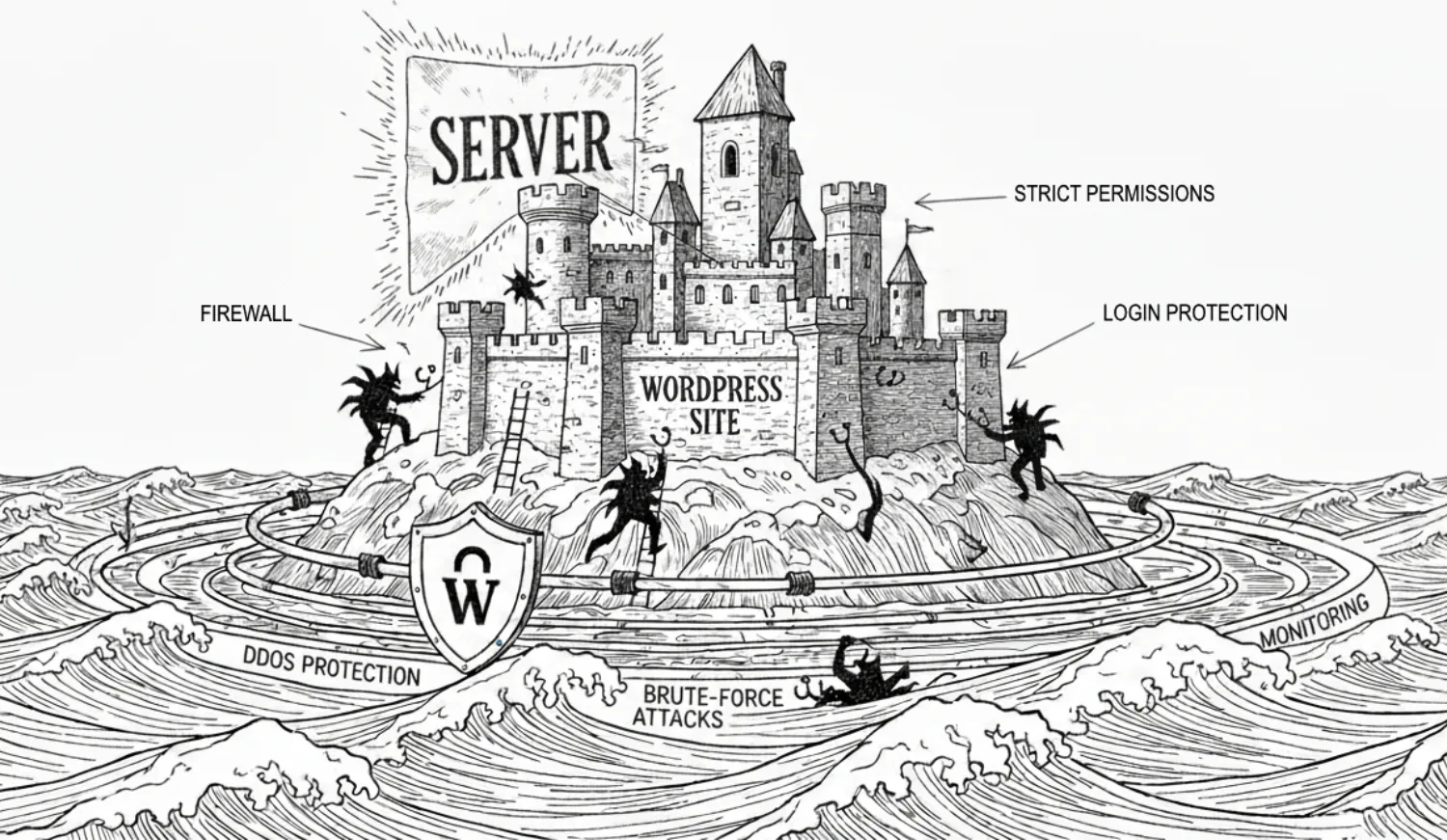
01
How Secure is WordPress?
About WordPress Security
Understanding the Security Model of WordPress
From Browser to Server: The Journey of a Web Request
The Real Problem
03
Hardening WordPress Security
Choose a Reliable Hosting Provider
Reduce the Attack Surface
Control Access and Permissions
Disable Unnecessary Features
Why I Don’t Use Security Plugins
Monitoring, Logging, and Early Detection
Backup, Backup, Backup
Prepare for Incidents Before They Happen
Build a Long-Term Security Culture
Chapter 1
Introduction—How Secure is WordPress?
About WordPress Security
WordPress powers over 40% of all websites today (source: W3Techs, as of Nov 2025). Its popularity is both a success story and a target. Some say “WordPress isn’t secure.” Others argue, “WordPress is only as secure as its setup.” Both are true for different reasons.
At its core, WordPress is a mature, open-source CMS platform maintained by a dedicated global community of developers and security researchers since 2003. The software itself is not inherently insecure—it’s the ecosystem around it that introduces most vulnerabilities: outdated plugins, weak server configurations, poor password routines, and neglected maintenance.
But security is not a switch you flip or a plugin you install. It’s a discipline. It requires planning, consistent habits, and a mindset that prioritizes long-term resilience. A strategic approach not only strengthens your defenses but also deepens your understanding of how WordPress functions beneath the surface. That awareness becomes increasingly important as the platform evolves. Once you understand the underlying mechanics, you can anticipate the impact of every change, update, or configuration, regardless of how WordPress grows or shifts in the years ahead.
When WordPress is configured correctly, maintained regularly, and hosted on a hardened server, it can meet the same security standards as any modern web framework. Its vast adoption remains the double-edged sword: a single vulnerable plugin can expose millions of sites. That’s why security in WordPress isn’t just a technical feature, it’s an ongoing responsibility.
Understanding the Security Model of WordPress
WordPress security can be visualized as a series of layers, each building upon the one beneath it—from the deepest server level to the outermost network edge. Together, these layers form a defense-in-depth model where each component reinforces the others.
Layer 1
Server & Infrastructure (The Foundation Layer):
Security starts at the infrastructure level. Your server, hosting environment, database, PHP settings, file permissions, SSL, and firewall rules form the base. A misconfigured server can compromise even the most secure WordPress site.
Layer 2
WordPress Core (The Application Layer):
Above the server sits the WordPress core, the heart of the website. It’s actively maintained by a dedicated security team that performs audits, releases patches, and collaborates with the broader open-source community to identify potential threats. Core vulnerabilities are rare and, when discovered, are patched quickly. The risk comes when site owners delay updates, leaving even minor issues exposed to exploitation.
Layer 3
Plugins & Themes (The Extension Layer):
Most attacks happen here. Plugins and themes add functionalities but also increase risk. Poorly coded plugins, especially those created by inexperienced developers or AI agents, can introduce vulnerabilities. Careful sourcing, regular updates, and audits are essential.
Layer 4
Edge & Network Layer (The Protective Perimeter):
The outermost layer includes CDN and security services like Cloudflare, reverse proxies, or application firewalls. These systems filter malicious traffic, block bots, and absorb distributed denial-of-service (DDoS) attacks before they ever reach your server. When properly configured, this layer acts as an intelligent perimeter—a buffer that not only enhances performance but also reinforces every deeper layer of defense.
Each layer is interconnected. When one fails—such as a vulnerable plugin—it weakens the integrity of the whole. A truly secure WordPress setup depends on hardening all layers, leaving no single point of failure.

From Browser to Server: The Journey of a Web Request
To visualize this layered model in action, let’s follow a single visitor’s request as it travels from their browser to your server, moving from the outermost layer (the edge) down to the deepest layer (the server). Each checkpoint is both a defense and a potential weak point.
Edge & Network Layer
The journey begins at the edge. When a user visits your website, their request first passes through a CDN or WAF like Cloudflare. Here, security filters scan for anomalies, blocking malicious IPs, rate-limiting suspicious activity, and caching static content. Most brute-force or DDoS attempts end here, before they ever reach your site or server.
The majority of legitimate traffic is served directly from the CDN, reducing both latency and exposure to your origin server.

WordPress Core
Requests that pass the edge reach the WordPress application itself. This is where authentication, session management, and application logic take place. WordPress interprets the request (such as viewing a post, submitting a form, or logging in), loads the relevant content, and interacts with plugins and the database.
If the core and its extensions are regularly updated, this layer is resilient against most forms of exploitation—from SQL injection to privilege escalation.

Plugins & Themes
As the request is processed, plugins and themes can modify or extend the response, such as generating dynamic content, loading scripts, or executing custom logic. This is often where vulnerabilities are exploited if insecure or outdated plugins are deployed.
Every added plugin is an implicit tradeoff: functionality versus potential risk. The more complex the stack, the greater the responsibility to audit and maintain it.
Server & Infrastructure
Finally, the request reaches the server, the deepest layer of your stack. This is where PHP executes WordPress code, MySQL retrieves content, and file permissions determine who can access what. A secure server setup with limited privileges, proper SSL, and strict ownership controls, serves as the ultimate safeguard against compromise, preventing attackers from gaining control or planting malware.
When optimized, this architectural model is remarkably efficient. For example, with Cloudflare CDN properly configured, it’s possible to cache your entire WordPress site for more than 95% of all traffic. This means the vast majority of requests are served directly from Cloudflare’s edge network without ever reaching your server. Visitors still see the same content, but your server and WordPress installation remain completely untouched and protected.
The Real Problem: Mis-management, Not WordPress
According to Patchstack’s State of WordPress Security in 2025 report, 96% of vulnerabilities were found in plugins and 4% in themes. Only seven vulnerabilities were discovered in WordPress core—none of which were critical. The takeaway is clear: the platform itself isn’t the problem; management is.
WordPress gives site owners complete control, but that freedom cuts both ways. It empowers experts to build secure, high-performance systems, while neglect or poor practices can leave site exposed. Its flexibility is both its strength and risk.
The real challenge, then, isn’t whether WordPress can be secure, it’s whether the people running it follow through. Security is not a one-time setup; it’s a continuous process of updates, audits, and disciplined management. In Chapter 3, I’ll cover best practices for hardening WordPress security, including strategies for maintaining WordPress projects with security in mind.
In the next chapter, we’ll examine the state of WordPress security in 2025. Looking at the hard numbers, emerging trends, and evolving threat landscape that define today’s ecosystem. These insights provide the foundation for understanding what’s working, what’s failing, and how the community continues to adapt.
Chapter 2
The State of WordPress Security in 2025
Before defending any system, the first step is understanding it, identifying its vulnerabilities, where they originate, and how they surface in real-world environments. Earlier this year, Patchstack, one of the leading authorities in WordPress vulnerability intelligence, released its State of WordPress Security 2025 whitepaper—a deep dive into the threats, trends, and progress shaping the WordPress ecosystem. The full report is available on Patchstack.
Here are some of the most revealing figures from the study, a snapshot of WordPress security today and the progress it has made. The numbers show a story of both growing strength and ongoing risk, highlighting WordPress’s huge presence on the web and the continuous effort needed to keep it secure.
Key Figures
In 2024, 7,966 new vulnerabilities were found in the WordPress ecosystem, primarily in third-party plugins. That’s a 34% increase over 2023. While the majority of vulnerabilities don’t pose an active risk, high priority vulnerabilities were also up 11% year on year.
96% of the vulnerabilities were uncovered in plugins, and 4% were found in themes. Only seven vulnerabilities were uncovered in WordPress core itself, but none of those were significant enough to pose a widespread threat.
43% of new vulnerabilities found in 2024 did not require any authentication to be exploited. While vulnerabilities with an unauthenticated prerequisite tend to be easier to exploit, it’s not always the case.
Cross-Site Scripting (XSS) remains the most widespread vulnerability.
1,018 vulnerabilities were found last year in components with at least 100,000 installs—of these, 153 received a High or Medium Patchstack Priority score. This demonstrates that install count is not a good indicator of security.
In 2024, 33% of vulnerabilities were not fixed in time for public disclosure. Many of the vulnerabilities were disclosed in abandoned plugins and will likely never receive a patch. Most of them still have active installations; these insecure plugins remain installed and active across the web.
It’s widely known that popular security plugins used for malware scanning are disabled, bypassed and even completely removed by malware. In 2023, the security company WeWatchYourWebsite identified 58,848 malware-infected WordPress websites that had Wordfence installed prior to infection and in 14% of the cases malware tampered with the Wordfence files to stay hidden.
Popular Websites Powered by WordPress
Originally launched as a simple blogging platform, WordPress has grown into the backbone of the modern web. As of November 2025, more than 37 million websites are built with WordPress, according to data from BuiltWith. Its reach spans every sector—from business and eCommerce to entertainment, news, and even government. Among its most prominent users is the official website of The White House (whitehouse.gov), which runs on WordPress.
In the right hands, WordPress proves it can perform at scale, handling millions of visits while maintaining high standards of security, reliability, and speed. Below is a list of some popular websites powered by WordPress, with traffic data sourced from Similarweb (September 2025):
Chapter 3
Best Practices for
Hardening WordPress Security
Before diving into specific techniques in Chapter 4, it’s important to first understand the high-level practices that form the backbone of a secure WordPress site. These security principles guide every decision, from choosing plugins to configuring server settings, and set the stage for the detailed strategies that follow. The sections ahead cover these foundational best practices and explain why they matter, so you can build security from the ground up rather than treating it as an afterthought.
Practice #1: Choose a Reliable Hosting Provider
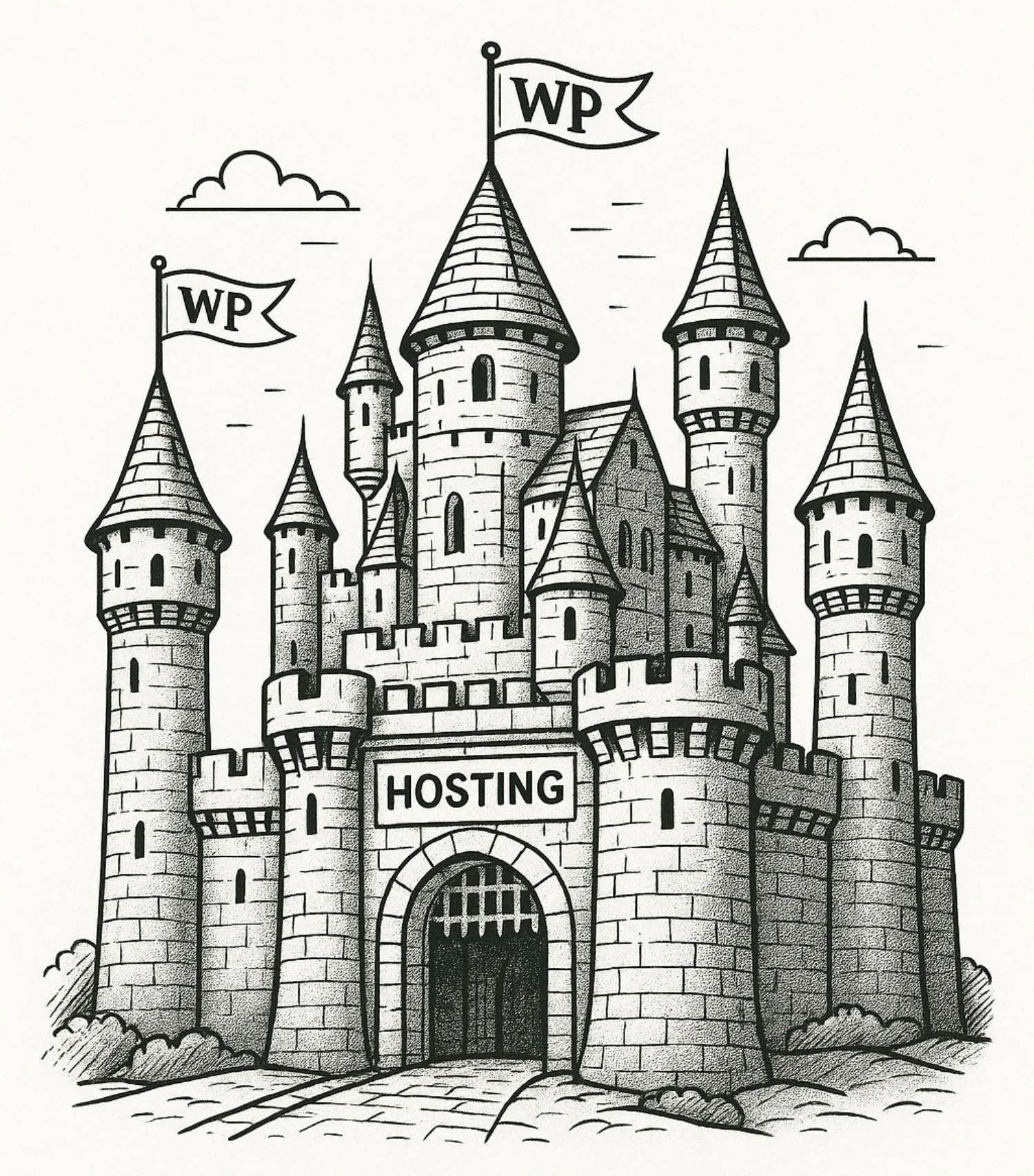
Hosting is where your site lives—like your house—it contains everything and also acts as the last line of defense. You don’t want any intruder or bad guy wandering into your house and messing with your stuff.
1.1 Types of Hosting
When come to WordPress hosting, there are three common types:
✦ Shared hosting: A type of hosting that packs dozens—or even hundreds—of sites onto the same server. Your website sits on the same machine as many others, much like living in a crowded condo. Shared hosting is the least desirable option because performance is fragile, and security is largely outside your control.
✦ Managed WordPress hosting: This solves some of the issues of shared hosting but introduces its own limitations. You’re locked into a preconfigured environment, which may prevent you from hardening the server exactly the way you want.
✦ VPS (Virtual Private Server): Offers the best balance for most security-focused teams. You get dedicated resources, stronger isolation, and full control of the server stack without needing the complexity of a full bare-metal machine. When evaluating providers, look for those with:
- Good reputation in the community.
- Well-maintained and up-to-date operating systems.
- Built-in infrastructure tools like firewalls (WAF), automated backup, malware detection, rate limiting, etc.
A VPS is what you should aim for. Today, you can get a reliable VPS from many providers for just a few dollars per month, and the benefits are significant. You gain full control over your server environment—you can configure the CPU, RAM, storage, choose the operating system, and decide exactly which software to install. Some providers even offer server control panels that let you quickly deploy a WordPress site in seconds.
With shared and managed hosting, providers often pre-install packages or scripts to help them manage the server. Most of the time, you’ll never know these scripts exist. If those scripts aren’t properly maintained, they can become vulnerabilities—potential entry points attackers can exploit to gain privileges or carry out harmful actions.
1.2 Control the Server Environment
Once you have a reliable hosting, next you should barricade the doors—that is, close unnecessary ports and only allow what’s required. For a typical WordPress site, there are three main ports:
- Port 22: Used for Secure Shell (SSH) connections.
- Port 80: Unencrypted HTTP web traffic.
- Port 443: Secure, encrypted HTTPS web traffic.
You generally only need ports 22 and 443 open. Port 80 is unnecessary and should always be closed. You can configure these ports in your server settings.
Next thing, if you have a co-worker or delegate tasks to another admin, you’ll create an account for them to access the server. Always assign the least privileges necessary for their tasks, nothing more. For example, in an AWS cloud server, you can specify granular permissions (managing instance, database, storage, etc.) for each account instead of giving full administrative access. This keeps the environment secure while allowing collaborators to work effectively.
1.3 When to Use Server Control Panels
Server control panels, also called hosting control panels or server panels, are all-in-one tools designed to simplify server management. Instead of manually installing packages, setting up WordPress, and configuring the server via the command line terminal, these panels provide a user-friendly interface that even non-developers can understand and use to set up a server themselves. The most common feature of these panels is one-click WordPress installation, which lets you install WordPress automatically with just a single click. They also include other essential features—such as automatic backups, server settings, logging, and multiple server management—all accessible in just a few clicks.
Some hosting providers include these panels in their plans, or you can install them separately as standalone software. However, convenience comes with trade-offs. Server panels expand the server’s attack surface because they expose additional endpoints, require elevated privileges, and sometimes automate tasks that would normally require careful configuration. If they are outdated or poorly maintained, panels can become a gateway for attackers.
For agencies or developers managing multiple client websites across various hosting providers, these panels are very useful and convenient. But for someone managing only one or two sites, they often aren’t worth the added risk—especially if your goal is to maintain full control over security without granting full server access to third-party tools or other users. Below is the list of server control panels I’ve found, including both paid, free, and open-source options:
Practice #2: Reduce the Attack Surface
Every package, plugin, theme, and line of code is a potential entry point for attackers. The leaner and more focused your stack, the fewer opportunities exist for compromise. Hardening starts with removing the unnecessary—deactivating or deleting unused plugins, trimming features you don’t need, and keeping your environment as clean as possible.
2.1 Keep Your Stack Lean
A key rule for WordPress security is simple: use as few plugins as possible. Plugins add flexibility, but each one introduces code you didn’t write and may not fully control. More plugins mean more unknowns, different coding practices, update schedules, and security standards you cannot verify.
Inactive plugins aren’t harmless either. Their files remain on your server and can still be exploited. Outdated components—such as plugins, themes, or frameworks that are no longer maintained—are common targets for attackers.
Whenever possible, rely on native WordPress features instead of installing a plugin for minor convenience. If custom functionality is required, building a lightweight, purpose-built plugin or theme is often safer than combining multiple third-party tools. The code you write or fully control is far easier to maintain and secure. However, not all site owners or teams can write custom code. In those cases, choosing the right plugin becomes critical. Every plugin should be evaluated carefully—considering factors like reputation, active installations, recent updates, support responsiveness, and security history—to ensure it adds functionality without introducing unnecessary risk.
This is also applied in server environment. Every extra module, service, or package installed on your server is another potential attack surface. Keeping your environment lean reduces risk and improves performance.
In the Ubuntu world, there are tons of packages you might be tempted to install on your server. While they may be eye-catching and convenient, always take caution before adding anything to your production server—even open-source tools—because malware can come in many forms. If you need a certain feature, first check whether your server or Ubuntu already provides it natively.
By minimizing unnecessary components, you not only reduce your server’s exposure to attacks but also create a more controllable environment for WordPress to run reliably.
2.2 Be Cautious With Certain Plugin Types
Some WordPress plugins are riskier than others—for example, file manager plugins. They give direct access to your server’s filesystem from the WordPress dashboard, a privilege that normally belongs to SSH or SFTP users. If compromised, they can allow attackers to upload malware, modify core files, or take over your site entirely.
In general, any plugin that replicates sensitive server functions—such as file, database, or backup management—requires extra caution. While these tools offer convenience, they also expand your attack surface. They often need elevated permissions, bypass normal authentication checks, or expose functions that were never meant to be executed from within WordPress.
For instance, a file manager plugin might let a user upload, edit, or delete any file on the server. If an attacker exploits it, they could replace core files with malware, inject backdoors, or access sensitive files like wp-config.php. Likewise, a database management plugin that allows direct SQL queries could enable data deletion or leakage if misused.
Instead, learn to manage the filesystem and database via SSH. You only need to know a few basic commands and SQL queries, for example:
- cd: Change directory (navigate to a specific folder).
- cp: Copy files or directories.
- mv: Move files or directories.
- rm: Remove files or directories.
- nano: Open and edit files.
Security-conscious teams should evaluate plugins not only for their functionality but also for the potential damage if they are exploited. When the risk is high, the safest course is either to avoid the plugin entirely and pursue an alternative solution, or to apply strict controls, such as limiting access to trusted administrators or enforcing additional authentication layers.
Practice #3: Control Access and Permissions
In Ubuntu (which act as the operating system of your server), every file and folder is governed by a permission model that controls who can read, write, or execute it. These permissions are defined for three groups: the owner, the group, and everyone else. By assigning the right permissions, you ensure that only authorized processes and users can modify or execute critical parts of your server. This model is simple but powerful, and mastering it is essential for keeping your WordPress environment secure. Ideally, you should:
- Properly set permissions for directories and files.
- Restrict write access to only what WordPress truly needs.
- Prevent PHP execution in sensitive folders, such as “uploads”.
I’ll explain more and go into the details in the next chapter.
Also, always enable two-factor authentication (2FA) for every login, including both your hosting and WordPress accounts. For hosting, enabling 2FA is a must. For WordPress, although 2FA doesn’t guarantee complete safety (since most vulnerabilities come from themes and plugins), it helps significantly reduce risk.
Practice #4: Disable Unnecessary Features
WordPress packs a lot of features, and not all of them are necessary. They sit there waiting to be used when you need them—but often, you don’t. Some of these features expose their own endpoints that may be accessible to the public. Leaving them enabled without using or securing them wastes server resources and increases the risk of exploitation. For example, the following features and data can be visible or accessible without authentication:
- List of all user accounts and their usernames
- List of plugins
- PHP version
- Web server version
- WordPress version
- XML-RPC interface
- And more…
With a simple technique, someone can scrape those information from your website and gain a lot of sensitive information without you ever knowing.
So, always stay current with the latest WordPress features and APIs. Disable what you don’t need and secure what you want to use. The best resource to following the latest news about WordPress is their homepage, wordpress.org, and their developer portal developer.wordpress.org.
Practice #5: Why I Don’t Use Security Plugins
Security plugins are often marketed as all-in-one solutions that “protect” your WordPress site, but relying on them can create more issues than they solve. While they may provide helpful tools in certain scenarios, remember that security must be enforced at every layer of your architecture—not just by installing a plugin at the WordPress layer.
#1
They Create a False Sense of Protection:
Many users install security plugins believing that they provide complete protection. In reality, they can only operate inside the WordPress environment—an environment that attackers can bypass entirely.
#2
They Add Performance Overhead:
Most security plugins load multiple scripts, scan files, monitor requests, and run scheduled tasks. All of that requires CPU, RAM, and database reads. On busy or resource-limited servers, this overhead slows your site down and consumes resources that should be used for customers or other jobs.
#3
They Duplicate Existing Features or Introduce Conflicts:
Many security features offered by those plugins, such as firewalls, brute-force protection, rate limiting, malware scanning—are already better handled at the server or edge-level. Running these checks twice can cause slowdowns, unexpected behavior, or even lock you out of your own admin dashboard.
#4
Edge-Level Tools Offer Better Protection and Control:
Edge-level firewalls, WAFs, DDoS protection, rate limiting, malware scanning, permission controls, and logs operate before WordPress ever loads. This is the thickest wall where your strongest security should live.

Practice #6: Monitoring, Logging, and Early Detection
As a dedicated admin, you should have monitoring tools to assist with daily maintenance tasks. At a basic level, these tools should:
- Monitor all the traffic.
- Monitor server health and resource usage.
- Logging every bugs that occur in realtime.
- Early detection when your sites are down or not accessible.
By default, web servers like Nginx log all traffic, and Ubuntu provides commands like “free”, “htop”, “uptime”, etc. to check server health. However, accessing these through the terminal can be inconvenient. There are many solutions that offer user-friendly interfaces and combine multiple features.
After trying several tools, such as Monit, UptimeRobot, and Pulsetic—I found Pulsetic and BetterStack are strong choices, offering a good balance between features and performance. There are also many other alternatives, including open-source options, that are worth exploring.
Also, an important thing to consider when choosing monitoring tools is whether they depend on large service providers like Cloudflare or AWS. If those services go down, your monitoring tools may fail too and you won’t receive any notifications. In other words, don’t put all your eggs in one basket.
For example, on November 18, 2025, Cloudflare suffered a massive outage across multiple continents, taking many sites, services, and SaaS platforms offline—including several monitoring tools that relied on Cloudflare’s infrastructure. Even my preferred tool, BetterStack, went down. Fortunately, I had a secondary alert tool—Pulsetic—that stayed online throughout the outage and notified me of the incident even before Cloudflare’s own status updates appeared.
Practice #7: Backup, Backup, Backup
Backups are your safety net—the last line of defense when something goes wrong, whether it’s a hacked site, a plugin gone rogue, or a server failure. Without reliable backups, even the most secure WordPress site can be irreversibly damaged.
7.1 Backup Principles (3-2-1 Rule)
A widely accepted principle in backup strategy is the 3-2-1 rule:
- Keep 3 copies of your data: one primary and two backups.
- Store 2 copies on different media: for example, one on your server and another on an external hard drive or cloud storage.
- Keep 1 copy offsite: this ensures you can recover even if your main server is compromised or physically damaged.
This approach minimizes risk and ensures you can restore your site quickly in almost any scenario. For example, you can set up backups like this:
✦ WordPress backups: Use UpdraftPlus plugin to regularly back up your entire WordPress site, including the database, and store copies on S3 or another cloud service such as Google Drive.
✦ Server-level backups: Use your hosting provider’s snapshot or backup tool to secure the entire server.
✦ Optional local backup: Download a copy of the UpdraftPlus backup to your local computer or NAS for added safety.
This way, you’ll have multiple copies of your data: one in production, one on S3 or Google Drive, one on the server, and optionally one on your local computer or NAS. These backups are stored on different types of media—object storage (S3/Google Drive), block storage (server snapshot), and file storage (NAS), and at least two copies are offsite. Whenever you need to restore your site, your backups are ready, and if one copy is damaged, the others remain intact.
7.2 Backup in WordPress and Server-Side Backup
WordPress-level backups are convenient for quickly restoring content, themes, and plugin settings. Plugins like UpdraftPlus make it easy to schedule WordPress backups and store them in the cloud, such as Dropbox, Google Drive, or S3.
For a more complete solution, consider server-side backups. These can snapshot the entire server environment, including OS configuration, server settings, and all WordPress sites on that server. Tools like rsync, BorgBackup, or provider-built snapshots (AWS, DigitalOcean, etc.) provide this level of protection.
Combining WordPress-level backups with server-side snapshots ensures you can recover from both application-level issues and full system failures. Backups are only useful if they’re reliable, tested, and regularly updated. So remember to test them frequently and verify that restoration works.
Practice #8: Prepare for Incidents Before They Happen
No system is perfect. Even giants like AWS or Cloudflare experience downtime several times a year. It’s always wise to prepare for incidents like these, especially when you’re managing client websites. The best question to ask is: If an incident occurs, what will you do?
Prepare a checklist for each scenario so you won’t be caught off guard. For example:
“If Cloudflare goes down, do you have an alternative to maintain service? If your hosting provider goes down, what steps will you take to minimize downtime? If your website suffers a DDoS attack, what procedures should you follow?“
The steps will vary between teams, so don’t stress about finding a perfect procedure immediately. Experiment, refine, and adapt until you find the most suitable approach for your system. For example:
✦ Cloudflare downtime: If the Cloudflare service goes down and your website becomes inaccessible, you can update your DNS records to an alternative service or point directly to your server. This restores access, although your site will temporarily lose Cloudflare features. Ensure all your security measures, both within WordPress and at the server level, are in place to protect your site even without Cloudflare.
✦ Hosting provider outage: If your hosting provider experiences downtime, have contingency plans ready. Options include setting up a load balancer, maintaining a mirror server, or keeping a static copy of your site on the Wayback Machine.
✦ Website under attack: If your site comes under attack, enabling Cloudflare’s “Under Attack Mode” can put your site into protection mode, helping prevent downtime and unauthorized access.
In any circumstances, always inform your clients promptly and clearly. Let them know that an action plan is in place, whether it’s restoring backups to return the site to normal or following a procedure to manage a serious incident.
Practice #9: Build a Long-Term Security Culture
The final best practice is to keep reminding yourself and your team about security. It requires steady attention over time. Let’s get acquainted with these habits:
- Document every action you take in your projects, including writing changelogs. Even small tweaks in your system should be recorded. You’ll thank yourself later when debugging.
- Develop a security policy for your team and ensure every member follows it.
- Periodically audit the system, review permissions, plugin usage, server settings, and security logs to make sure everything is in order.
- Stay current with the latest trends and developments in the industry.
With these high-level practices in place, you’ve built a strong foundation for WordPress security. You understand how to minimize risk, control your environment, and cultivate a culture that keeps security at the forefront.
In the next chapter, we’ll move from strategy to action, covering specific, practical techniques to harden your WordPress site, from system hardening to plugin configuration. This is where theory meets implementation, giving you the tools to apply everything we’ve discussed in real-world scenarios.
Chapter 4
WordPress Security in Action
Enough theory, now I’ll walk you through specific tips and tricks to strengthen WordPress security. Many of these require you to have SSH access to the server to modify core files, so make sure you’re familiar with it. You can refer to my previous tutorial on how to use SSH, as well as the complete guide on installing WordPress on your server with PHP 8.4 and Cloudflare SSL. That guide uses Nginx, so this chapter focuses on Nginx examples as well. Now, let’s take a look at how a WordPress site can be hacked.
How to Hack a WordPress site
It would be pointless to improve WordPress security without understanding why it matters. To see the risks, let’s look at a common tool used to “hack” WordPress sites, WPScan. This tool shows just how insecure a WordPress site can be when it’s not properly protected. WPScan is a free (for non-commercial use), black-box WordPress security scanner designed for security professionals and site owners to test the security of their websites. It was acquired by Automattic in 2023.
With WPScan, anyone can quickly scan a WordPress site and retrieve a range of sensitive information if the site owner hasn’t secured it, including:
- The version of WordPress installed and any associated vulnerabilities
- PHP version
- What plugins / themes are installed and any associated vulnerabilities
- List of Usernames
- Users with weak passwords via password brute forcing
- Publicly accessible wp-config.php file
- Database dumps that may be publicly accessible
- If error logs are exposed by plugins
- Media file enumeration
- Vulnerable Timthumb files
- If the WordPress readme file is present
- If WP-Cron is enabled
- If XML-RPC is enabled
- If user registration is enabled
- Full Path Disclose
- Upload directory listing
- And much more…
What can one do with this information? For example:
✦ PHP and WordPress versions: Attackers can look up known vulnerabilities and exploit them. The same applies to plugin and theme versions.
✦ Exact username data: Enables brute-force attacks.
✦ Exposed wp-config.php file: Reveals database credentials, configuration details, and the entire site setup.
✦ WP-Cron enabled: Attackers can trigger wp-cron.php repeatedly, causing WordPress to run scheduled tasks nonstop. This can lead to resource exhaustion, slow performance, or even a full site crash.
✦ XML-RPC enabled: Often abused for brute-force attacks.
✦ Other leaked data (from plugins, themes, logs, database dumps, installation paths, and more): Gives attackers additional clues and entry points, making it easier to plan a successful attack later.
Here is an example of a WPScan scan result for a WordPress site (Click to Expand):
[+] URL: https://[REDACTED].com/ [xxx.xx.x.xxx]
[+] Started: Fri Dec  5 12:06:02 2025

Interesting Finding(s):

[+] Headers
 | Interesting Entries:
 |  - x-powered-by: PHP/8.2.29
 |  - server: LiteSpeed
 |  - platform: hostinger
 |  - panel: hpanel
 | Found By: Headers (Passive Detection)
 | Confidence: 100%

[+] robots.txt found: https://[REDACTED].com/robots.txt
 | Interesting Entries:
 |  - /wp-content/uploads/wc-logs/
 |  - /wp-content/uploads/woocommerce_transient_files/
 |  - /wp-admin/
 | Found By: Robots Txt (Aggressive Detection)
 | Confidence: 100%

[+] XML-RPC seems to be enabled: https://[REDACTED].com/xmlrpc.php
 | Found By: Direct Access (Aggressive Detection)
 | Confidence: 100%

[+] WordPress readme found: https://[REDACTED].com/readme.html
 | Found By: Direct Access (Aggressive Detection)
 | Confidence: 100%

[+] The external WP-Cron seems to be enabled: https://[REDACTED].com/wp-cron.php
 | Found By: Direct Access (Aggressive Detection)
 | Confidence: 60%
 | References:
 |  - https://www.iplocation.net/defend-wordpress-from-ddos

[+] WordPress version 6.6.2 identified (Insecure, released on 2024-09-10).
 | Found By: Emoji Settings (Passive Detection)
 |  - https://[REDACTED].com/, Match: 'wp-includes\/js\/wp-emoji-release.min.js?ver=6.6.2'
 | Confirmed By: Meta Generator (Passive Detection)
 |  - https://[REDACTED].com/, Match: 'WordPress 6.6.2'

[+] WordPress theme in use: [REDACTED]
 | Location: https://[REDACTED].com/wp-content/themes/[REDACTED]/
 | Style URL: https://[REDACTED].com/wp-content/themes/[REDACTED]/style.css?ver=1.7
 | Style Name: [REDACTED]
 |
 | Found By: Css Style In Homepage (Passive Detection)
 | Confirmed By: Css Style In 404 Page (Passive Detection)
 |
 | Version: 1.2 (80% confidence)
 | Found By: Style (Passive Detection)
 |  - https://[REDACTED].com/wp-content/themes/[REDACTED]/style.css?ver=1.7, Match: 'Version: 1.2'

[+] Enumerating All Plugins (via Passive Methods)
[+] Checking Plugin Versions (via Passive and Aggressive Methods)

[i] Plugin(s) Identified:

[+] woocommerce
 | Location: https://[REDACTED].com/wp-content/plugins/woocommerce/
 | Last Updated: 2025-12-02T09:22:00.000Z
 | [!] The version is out of date, the latest version is 10.3.6
 |
 | Found By: Urls In Homepage (Passive Detection)
 | Confirmed By:
 |  Urls In 404 Page (Passive Detection)
 |  Meta Generator (Passive Detection)
 |
 | Version: 9.4.1 (100% confidence)
 | Found By: Query Parameter (Passive Detection)
 |  - https://[REDACTED].com/wp-content/plugins/woocommerce/assets/css/woocommerce-layout.css?ver=9.4.1
 | Confirmed By: Meta Generator (Passive Detection)
 |  - https://[REDACTED].com/, Match: 'WooCommerce 9.4.1'

[i] No Config Backups Found.

[+] Finished: Fri Dec  5 12:06:14 2025
[+] Requests Done: 172
[+] Cached Requests: 7
[+] Data Sent: 0 B
[+] Data Received: 399.89 KB
[+] Memory used: 349.797 MB
[+] Elapsed time: 00:00:11Code language: plaintext (plaintext)
—
Now, let’s secure them.

Secure Your WordPress site
Although I don’t prefer dedicated security plugins, I do recommend lightweight utility plugins that provide specific features and make your job easier. For example, if you need to add 2FA, it’s more practical to use a dedicated 2FA plugin than to build the feature from scratch. In this section, I’ll highlight a few plugins that cover the most important security features without installing too many.
1. Hide PHP version and Nginx version
You’ve already seen how WPScan can reveal your PHP version. With Nginx, its version can also be exposed, often appearing on pages served when a request is blocked by Nginx rules.
✦ To hide Nginx version: SSH to your server and open Nginx configuration file, using this command:
sudo nano /etc/nginx/nginx.confCode language: Bash (bash)Inside the “http” block, look for “server_tokens off;” and make sure it isn’t commented out. If the line begins with a “#”, remove the “#” to enable it. If the line doesn’t exist, simply add it like this:
http {

        ##
        # Basic Settings
        ##

        sendfile on;
        tcp_nopush on;
        types_hash_max_size 2048;
        server_tokens off;

        ...
}Code language: Nginx (nginx)
Press Ctrl+X to close the editor, then press Y to save the file.
✦ To hide PHP version: Use this command to open php.ini file:
sudo nano /etc/php/8.4/fpm/php.iniCode language: Bash (bash)Replace the “8.4” in that command with your PHP version. For example, if you’re using PHP 8.1, the command would be:
sudo nano /etc/php/8.1/fpm/php.iniCode language: Bash (bash)Look for the “expose_php = Off” line. That line may begins with a “;” character, remove that “;” to enable the option. For example:
; Decides whether PHP may expose the fact that it is installed on the server
; (e.g. by adding its signature to the Web server header). It is no security
; threat in any way, but it makes it possible to determine whether you use PHP
; on your server or not.
; https://php.net/expose-php
expose_php = OffCode language: PHP (php)
Tip: Since php.ini is a very long file, you can quickly jump to the “expose_php” setting by pressing Ctrl+W to open the Search function, typing “expose”, and pressing Enter to go directly to its position.
To verify that your version numbers are actually hidden, visit any page that’s blocked by your Nginx rules and confirm that the Nginx version no longer appears. For the PHP version, you can check it directly from your computer’s terminal using this command:
curl -I https://your-site.comCode language: Bash (bash)If PHP version exposure is not disabled, the output will include a header like:
x-powered-by: PHP/7.3.33Code language: Bash (bash)2. Enforce Automatic TLS/SSL Certificate
Today, a TLS/SSL certificate is essential for every website. As mentioned in the WordPress installation guide, you can follow this tutorial to setup a free and automatic SSL certificate for your site.
3. Block Direct IP Access to Prevent Cloudflare Bypass
When your site runs behind Cloudflare, all traffic should go through Cloudflare’s network. That’s where the security features, such as DDoS protection, rate limiting, bot filtering, and firewall rules actually work. But if someone can reach your server directly through its IP address, they can bypass Cloudflare entirely.
The fix is simple: tell Nginx to refuse all direct requests to the server’s IP address. You can do this by modifying a server block in Nginx configuration that catches any request not matching your real domain name.
Open Nginx config file of your website, using this command:
sudo nano /etc/nginx/sites-enabled/defaultCode language: Bash (bash)Modify the “server” block that listen on port 80 like this:
## BLOCK HTTP ACCESS
server {
    listen 80 default_server;
    server_name _;

    location / {
        return 444;
    }
}Code language: Nginx (nginx)
What this does is tell Nginx to catch any HTTP request that doesn’t match another server block and immediately drop the connection without sending a response. With this in place, anyone trying to reach your server through its raw IP address gets nothing at all.
Tip: You should also enable the “Always Use HTTPS” option in the Cloudflare dashboard (SSL/TLS → Edge Certificates). This ensures that whenever someone visits your site over HTTP, Cloudflare automatically redirects them to the secure HTTPS version.
4. Set the Security Permissions for WordPress files and folders
A secure WordPress installation follows a simple rule: files should be readable, directories should be accessible, and only the essentials should be writable by the server. The commands below tighten your WordPress filesystem to a safe state. They ensure the web server (usually “www-data” on Ubuntu) owns the installation while keeping permissions restrictive enough to block common attack paths.
Run these commands:
sudo chown -R www-data:www-data /var/www/server/wordpress

sudo find /var/www/server/wordpress -type f -exec chmod 644 {} \;
sudo find /var/www/server/wordpress -type d -exec chmod 755 {} \;

sudo chmod 400 /var/www/server/wordpress/wp-config.php

sudo chmod 600 /etc/php/8.4/fpm/php.ini
sudo systemctl reload php8.4-fpmCode language: Bash (bash)
Replace “/var/www/server/wordpress” with your WordPress installation path; and replace “8.4” with your PHP version, e.g. “8.1”, “7.3”.
What these commands do:
- Ownership (“chown”): Gives full control to “www-data”, the user that Nginx and PHP-FPM run under. This ensures WordPress can function normally.
- File permissions (644): All files become readable by the server and the system, but only the owner can modify them. This blocks unauthorized edits from the public and other system users.
- Directory permissions (755): Directories need “execute” permission so WordPress can traverse them. Setting them to “755” keeps them accessible but not writable by outsiders.
- Lock down wp-config.php (400): This file contains your database credentials, salts, and keys. Making it readable only by the server dramatically reduces the risk of accidental exposure.
- Secure php.ini and reload PHP-FPM: PHP’s configuration contains sensitive directives. Setting it to “600” ensures only the system can modify it. Reloading PHP-FPM applies the changes immediately.
5. Secure your wp-config.php file
The wp-config.php file stores your database credentials, authentication keys, and other sensitive configuration details. It’s one of the most critical files in your entire installation. No one except you (or your server) should ever be able to read or modify it. Beyond setting its permission to “400”, you can move this file one level above your WordPress root directory, making it inaccessible from the public web. Refer to this article for a step-by-step guide on how to do that safely.
6. Hide all errors from being printed on the front-end
WordPress uses the “WP_DEBUG” setting to enable debugging mode, and when it’s active, error details can appear directly on the front-end. This is risky. It makes your site look broken and can expose sensitive information that attackers may use to probe for weaknesses. To prevent this, open your wp-config.php file with the following command:
sudo nano /var/www/server/wordpress/wp-config.phpCode language: plaintext (plaintext)Replace “/var/www/server/wordpress/” with your actual WordPress installation path.
Add the following lines to the file, placing them just above the line that says “/* That’s all, stop editing! Happy publishing. */“. For example:
define( 'WP_DEBUG', true );
define( 'WP_DEBUG_LOG', true );
define( 'WP_DEBUG_DISPLAY', false );

/* That's all, stop editing! Happy publishing. */Code language: PHP (php)
These lines enable WordPress’s debugging mode, log all error details to the /wp-content/debug.log file, and prevent those errors from being shown on the front-end.
7. Disable WP-Cron
Refer to this article to learn what WP-Cron is, why it should be disabled and how to do it properly.
8. Disable the WordPress File Editor
WordPress includes a built-in file editor that lets administrators modify theme and plugin files directly from the dashboard (Tools → Theme File Editor/Plugin File Editor). It sounds convenient, but from a security perspective, it’s one of the most dangerous features in the entire platform. The reason is simple: if an attacker ever gains access to your WordPress admin panel, they can use this editor to inject malicious PHP code straight into your theme or plugins. Even legitimate administrators can cause trouble accidentally. One typo in the editor can break a theme or even crash the site.
Turning it off is easy. Open your wp-config.php file and add the following line above the “Happy publishing” comment:
define( 'DISALLOW_FILE_EDIT', true );

/* That's all, stop editing! Happy publishing. */Code language: PHP (php)
When this is enabled, the theme and plugin editors disappear from the WordPress dashboard entirely. You can still update themes and plugins normally, and you can still edit files through SFTP or SSH—just not inside the WordPress admin.
For many attacks, this one setting removes the attacker’s fastest path to full site compromise. It’s a small change that dramatically reduces risk without affecting your daily workflow.
9. Change the default login URL to dodge ‘dumb’ bots
Not every attack comes from sophisticated tools. A huge portion of brute-force attempts come from simple, automated bots that target “your-site.com/wp-admin/” to try thousands of username and password combinations. Changing your login URL to something unique, like “your-site.com/secret-gate/”, will blocks these automatic attempts and helps protect your server resources.
To do this easily, use the free Admin and Site Enhancements (ASE) plugin. ASE is a lightweight tool designed to improve WordPress performance and security. After installing it, open your admin dashboard and navigate go Tools → Enhancements → Log In/Out | Register. Then enable the “Change Login URL” option and enter your preferred login endpoint.
10. Limit Login Attempts, Hide WordPress Version, etc.
Limit login attempts to prevent brute-force attacks from unauthorized users. The ASE plugin lets you control how many failed login attempts are allowed per IP address before it triggers a lockout. You can set how many attempts are permitted before a 15-minute lockout kicks in, and how many lockouts will block an IP for 24 hours. To configure this, open the ASE dashboard, go to the Security tab, and enable “Limit Login Attempts.” You’ll also find a log of failed login attempts that ASE has detected and blocked.
ASE also includes other helpful security features you may want to enable, such as:
- Disable Author Archives: Return 404 (Not Found) error when trying to load author archives. Remove or disable links to author archives. Remove authors archives from the sitemap.
- Disable the generator “meta” tag: Which discloses the WordPress version number. Older versions(s) might contain unpatched security loophole(s).
- Disable the “generator” tag: Which discloses the WordPress version number.
- Disable version number on static resource URLs referenced in the “head” tag, which can disclose WordPress version number.
- Obfuscate Author Slugs: Obfuscate publicly exposed author page URLs that shows the user slugs / usernames, e.g. “your-site.com/author/taihoang/” into “your-site.com/author/a6r5b8ytu9gp34bv/”, and output 404 errors for the original URLs. Also obfuscates in “/wp-json/wp/v2/users/” REST API endpoint.
- Email Address Obfuscator: Obfuscate email address to prevent spam bots from harvesting them, but make it readable like a regular email address for human visitors.
11. Hide your real username
✦ Set your display name: In WordPress, if you don’t set a display name, your actual username may appear publicly on your blog posts. That gives attackers half of the login credentials they need. Once they know the username, all they have to do is brute-force the password.
To avoid this, always set a proper display name in your admin dashboard. Go to Users → Profile, fill in your first name, last name, or a nickname, and then choose which one should appear publicly under “Display name publicly as.” Make sure the name you choose is different from your real login username.
✦ Prevent user enumeration: Hiding your display name isn’t enough. WordPress exposes user data through its REST API, allowing attackers to enumerate every account on your site. This method is known as user enumeration. You can test this yourself by adding this path to any WordPress URL: “/wp-json/wp/v2/users”. For example:
https://your-site.com/wp-json/wp/v2/usersCode language: plaintext (plaintext)And just like that—boom—a full list of user accounts appears. It includes user IDs, usernames, roles, avatars, and a surprising amount of additional information.
To mitigate this issue, you can block requests to the user-enumeration endpoints directly at the Nginx level. This prevents attackers from probing “/wp-json/wp/v2/users” and other endpoints that expose user info.
Open your Nginx configuration file:
sudo nano /etc/nginx/sites-enabled/defaultCode language: JavaScript (javascript)Inside the “server” block that listens on port 443, add rules like the following:
server {
    server_name taihoang.com;
    listen 443 ssl;
    root ...;

    # BLOCK AUTHOR QUERY STRING ENUMERATION (?author=ID)
    if ($args ~* "^author=([0-9]+)") {
        return 404;
    }

    # BLOCK DIRECT ACCESS TO AUTHOR SITEMAP
    location ~ ^/author-sitemap\.xml$ {
        return 404;
    }

    # BLOCK REST API USER ENUMERATION
    location ~ ^/wp-json/wp/v2/users {
        return 403;
    }

    ...
}Code language: Nginx (nginx)
12. Avoid Using the Username “admin”
Using “admin” as your WordPress administrator username is one of the biggest security risks you can introduce. It’s the very first username bots and attackers try during brute-force attempts because it appears on millions of sites. If you use it, you’ve essentially made their job easier. So don’t. The best practice is to use a unique, non-obvious username—not your real name, business name, or anything predictable.
13. Integrate two-factor authentication
To enable two-factor authentication, a reliable choice is the Two-Factor plugin. It’s free, developed by WordPress.org, and supports multiple authentication methods, including:
- Email codes
- Time Based One-Time Passwords (TOTP)
- FIDO Universal 2nd Factor (U2F)
- Backup Codes
This is a great plugin that should become part of WordPress core in the future.
One important note: if you also plan to change your default login URL, you should use another plugin (not ASE) for that purpose. Although ASE allows you to change the login URL, it does not support 2FA. It would be ideal if ASE handled both, but since it doesn’t, the best combination for this scenario is:
✦ Two-Factor: For 2FA.
✦ WPS Hide Login: For changing the login URL.
This setup gives you both a custom login URL and strong two-factor protection without compatibility issues.
14. Remove Unused Plugins and Themes
Keeping unused plugins or themes around is unnecessary risk, especially on a production website. To keep your WordPress installation clean and secure:
- Delete plugins you no longer use, not just deactivate them.
- Remove themes you don’t need, keeping only your active theme and one default WordPress theme (such as Twenty Twenty-Five) as a fallback.
- Avoid accumulating “test” plugins or old themes you no longer rely on.
- Regularly audit your plugins list, especially after redesigns or feature changes.
Fewer plugins means fewer attack surfaces, fewer updates to worry about, and better performance overall.
15. Wisely Manage User Accounts
If multiple people are working on your site, each person should have their own individual account, never share a single login among multiple users. Shared accounts make it impossible to track activity, complicate audits, and create serious security risks. You should also assign users only the permissions and roles they actually need to do their job.
It’s recommended to:
- Delete accounts that are no longer needed, such as old employees, developers, or test accounts.
- Regularly audit user roles to ensure each account has the minimum permissions required to do their job.
16. Don’t Forget “Must-Use Plugins”
WordPress has a special folder called “mu-plugins” (located at “/wp-content/mu-plugins/”) that loads plugins automatically without showing them in the normal Plugins list. This makes the folder extremely powerful and also a place attackers love to hide malware. If a hacker gains access to your server, the “mu-plugins” directory is an ideal place to plant malicious code because:
- MU plugins run before all other plugins.
- They cannot be seen or deactivated from the WordPress admin dashboard.
- Many site owners forget or don’t even know the folder even exists.
Because of this, you should inspect the “mu-plugins” folder regularly to ensure nothing suspicious has been added.
What you should do:
- Check “/wp-content/mu-plugins/” regularly (or after any suspicious behavior).
- Delete files you don’t recognize.
- Store only essential and trusted mu-plugins there.
If your site suddenly behaves strangely and no plugin seems responsible, the “mu-plugins” folder is one of the first places you should investigate.
17. Disabling Concatenated Script Loading
By default, when you visit the admin dashboard, WordPress bundles multiple JavaScript files into a single request. This happens through load-scripts.php, a mechanism known as script concatenation. It was originally designed to improve performance by reducing the number of HTTP requests. But in the modern servers, this mechanism is no longer helpful and can introduce downsides. It is recommended to disable script concatenation to secure your site even further. You can read more details about this practice in this article.
To disable it, add the following line to your wp-config.php file:
define('CONCATENATE_SCRIPTS', false);Code language: PHP (php)18. Blocking OPML links
OPML (Outline Processor Markup Language) is a legacy WordPress feature that exposes an endpoint at /wp-links-opml.php. This file lists blogroll links in a machine-readable format. OPML was originally designed to share link lists between feed readers and blogging tools. Today, it’s a relic of early blogging workflows that most WordPress sites no longer use.
To block access to OPML file, add this location block inside the “server” block:
# BLOCK OPML LINKS
location = /wp-links-opml.php {
    return 403;
}Code language: Nginx (nginx)
For more details, refer to this article.
19. Other Security Measures in Nginx
Beyond the core WordPress hardening steps, you can strengthen your site even further by adding extra security rules directly in your Nginx config. These rules help block malicious requests, protect sensitive files, reduce attack surface, and stop automated scanners from probing your site. Below is a breakdown of the rules and what each one does.
Open Nginx config file of your website by using this command:
sudo nano /etc/nginx/sites-enabled/defaultCode language: Bash (bash)And add the following lines into the “server” block that listen on port 443:
✦ Block XML-RPC:
# BLOCK XML-RPC
location = /xmlrpc.php {
    deny all;
    access_log off;
    log_not_found off;
}Code language: Nginx (nginx)
✦ Protect Sensitive WordPress Files: Files like wp-config.php and readme.html reveal information about your installation and contain sensitive configuration details. These should never be publicly accessible.
# BLOCK ACCESS TO SENSITIVE FILES
location ~* /(wp-config\.php|readme\.html|license\.txt|wp-settings\.php) {
    deny all;
    return 403;
}Code language: Nginx (nginx)
✦ Block Access to Plugin/Theme Readme Files: Many plugins and themes include readme or changelog files that expose version numbers. Attackers use these to identify vulnerabilities.
# DENY REQUEST TO README FILES OF PLUGINS
location ~* /(readme|changelog|license)\.(txt|md)$ {
    deny all;
    return 403;
}Code language: Nginx (nginx)
✦ Block Access to debug.log: If you enable WordPress debugging, error details can leak through debug.log. This file should also be blocked from the public.
# DENY REQUEST TO DEBUG.LOG
location ~* /wp-content/debug\.log {
    deny all;
    return 404;
}Code language: Nginx (nginx)
✦ Block Access to Server Configuration Files and Hidden Files: Many config files contain secrets (API keys, environment variables, credentials). Denying access prevents accidental exposure.
# DENY REQUEST TO CONFIG FILES
location ~* \.(ini|log|conf|env)$ {
    deny all;
}

# DENY REQUEST TO HIDDEN FILES
location ~ /\. {
    deny all;
}Code language: Nginx (nginx)
✦ Limit Access to WP-Cron: If you disable WP-Cron and replace it with a real cron job, you must block public access to prevent abuse.
# DENY REQUEST TO WP-CRON.PHP
location = /wp-cron.php {
    allow 127.0.0.1;
    deny all;
    return 403;
}Code language: Nginx (nginx)
✦ Block WPScan and Other Automated Scanners: Attackers often use automated tools to brute-force or probe your site. Blocking their User-Agents helps reduce noise and malicious traffic.
# BLOCK WPSCAN AND OTHER SCANNERS
if ($http_user_agent ~* "wpscan|nikto|fimap|sqlmap|acunetix|nmap") {
    return 403;
}Code language: Nginx (nginx)
✦ Prevent PHP Execution in “Uploads“ Folder: The “uploads” folder should only contain media (images, videos, documents). If an attacker manages to upload a malicious PHP file, this rule stops it from running.
# PREVENT PHP EXECUTION IN UPLOADS
location ~* /wp-content/uploads/.*\.php$ {
    deny all;
    return 403;
}Code language: Nginx (nginx)
20. Useful Cloudflare Rules
Cloudflare’s Web Application Firewall (WAF) will be one of your strongest layers of protection before traffic ever reaches your server.
Even if your Nginx security rules are solid, Cloudflare can stop many attacks much earlier, including bots, scanners, spam, brute-force attempts, and common WordPress-specific exploits. To help you set up effective protection without breaking your site, I found this article provides an excellent curated list of ready-to-use Cloudflare rules: Cloudflare WAF Rules v3. These rules cover many important security cases, such as:
- Blocking access to sensitive WordPress paths.
- Filtering bad bots and automated scanners.
- Hardening login & admin URL protection.
- Whitelisting Server IP.
- And much more.
The guide explains each rule clearly, why it matters, and how to add it safely in your Cloudflare dashboard. If you’re new to Cloudflare or want a complete security baseline that doesn’t conflict with plugins or themes, this is one of the best resources you can follow.
You might wonder why you should set up additional rules in Cloudflare when you already have them in Nginx. The answer is: layered security. If one layer is compromised, misconfigured, or temporarily unavailable, the other layer is still there to protect you. Cloudflare acts as your frontline defense, every request must pass through it before reaching your server. This is where you should place most of your filters and restrictions so malicious traffic gets stopped early and never consumes your server’s resources.
If Cloudflare ever experiences issues or if traffic somehow bypasses it, Nginx becomes your second gate, enforcing the same (or most of) protections at the server level. Together, Cloudflare and Nginx form a double shield, ensuring your website remains protected even if one layer fails.
Chapter 5
What To Do Next
Always stay updated with the latest trends in the WordPress ecosystem. I’ll keep this handbook updated over time to make sure each chapter reflects the latest practices. In the meantime, here are reliable sources worth following to stay informed and ahead of potential changes.
The Official Sources
- WordPress.org News: The official newsroom for release announcements and project developments.
- Make WordPress Core Blog: If you want to know what core developers are planning before the update hits your dashboard, this is where they discuss features, technical decisions, and upcoming changes.
Security Intelligence
- Patchstack Database & Threat Reports: Clear explanations of real vulnerabilities affecting real sites.
- WPScan Vulnerability Database: The widely respected database for WordPress vulnerabilities.
- Sucuri Security Blog: The latest news in malware infections, WordPress vulnerabilities, and troubleshooting errors.
- Cloudflare Blog: Global threat intelligence, bot activity analysis, and DNS-level insights.
Communities
- r/Wordpress: The place for news, articles and discussion regarding WordPress.
- r/ProWordPress: A sub for Professional WordPress developers to ask advanced questions.
- Dynamic WordPress (FB group).
- The Admin Bar Community (FB group).
Contributors
I’d like to thank the following contributors for their feedback and corrections:
Mr. Bart De Ruyck
Corrected the reference from WP Umbrella to GridPane, suggested disabling concatenated script loading and blocking OPML links.
The End